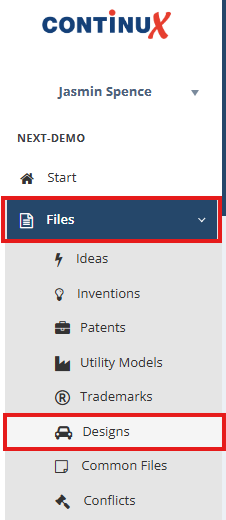
| Creating a national Design file (DE) follows the same basic principle as described in the article „Creating a new file in Continux“. This article supplements the general steps with the specifics relevant to a national Design file (DE). Create new „Design“ file 1. In the left main menu, select the area „Files“ → „Designs“. | ||
 | ||
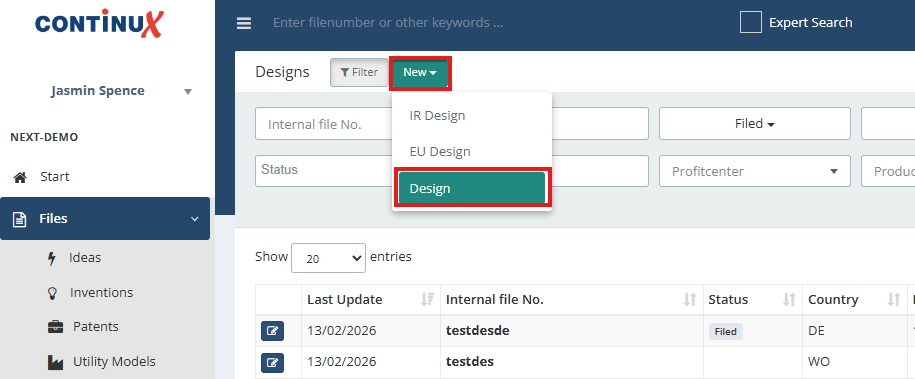
| 2. Click the green button „New“. 3. Select „Design“ from the list of file types | ||
 | ||
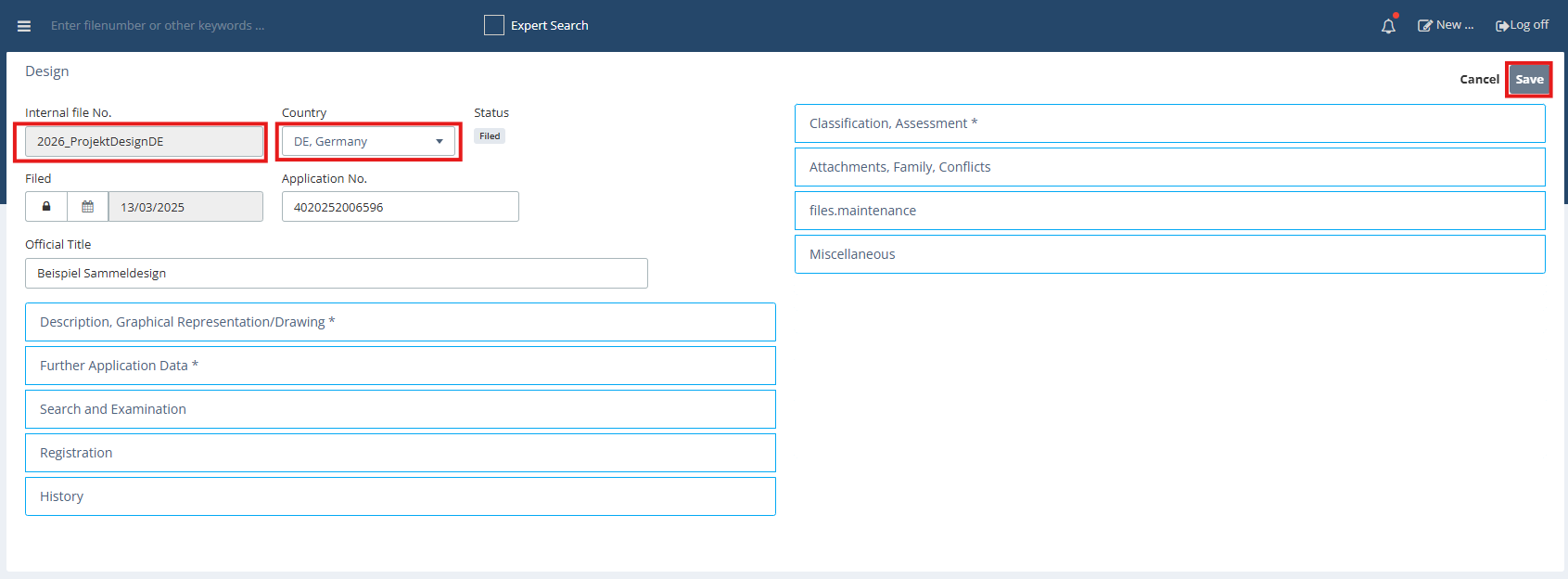
| 4. The „Design“ input mask opens. 5. First enter the internal file number (mandatory field). 6. If already known, it is recommended to also select the country of the design application, although it is not a mandatory field. 7. Click „Save“ to create the new Design file. | ||
 | ||
| Important note After the first save, the file number can be changed only once. If the option „Yes, edit“ is not used, the file number cannot be edited later. Typos and no edit option? Delete file. ➔ Direct link to instructions here | 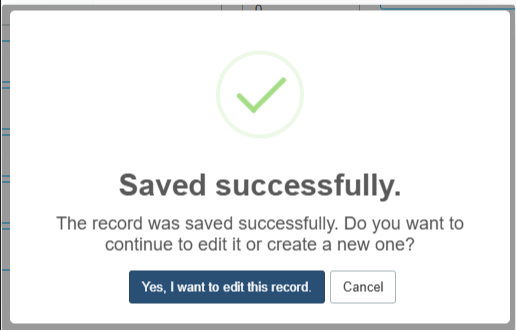 | 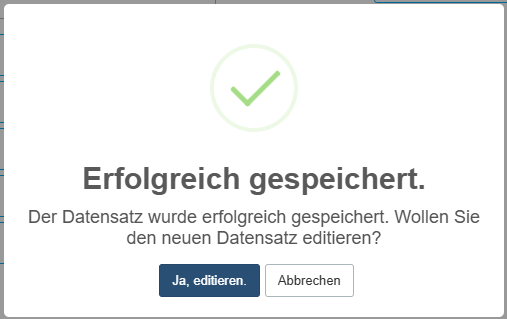 |
Mandatory field: File number
| ||
Further fields of the national Design file (DE) The fields are arranged according to the design procedure process – from application (application date, application number, applicant) through search and examination to registration, maintenance and ongoing administration of the design. For initial creation, it is sufficient to fill in the mandatory fields; further details such as registration data etc. can be added at a later time. | ||
| Related articles ➔ Creating a new file in Continux - an overview ➔ Delete and restore file in Continux ➔ Create and manage Multiple Designs in Continux (to follow) | ||
War dieser Artikel hilfreich?
Das ist großartig!
Vielen Dank für das Feedback
Leider konnten wir nicht helfen
Vielen Dank für das Feedback
Feedback gesendet
Wir wissen Ihre Bemühungen zu schätzen und werden versuchen, den Artikel zu korrigieren