This article explains how to move a file to the “Deleted files” folder, restore it, or delete it permanently. The steps apply to all file types. |
Prerequisites
|
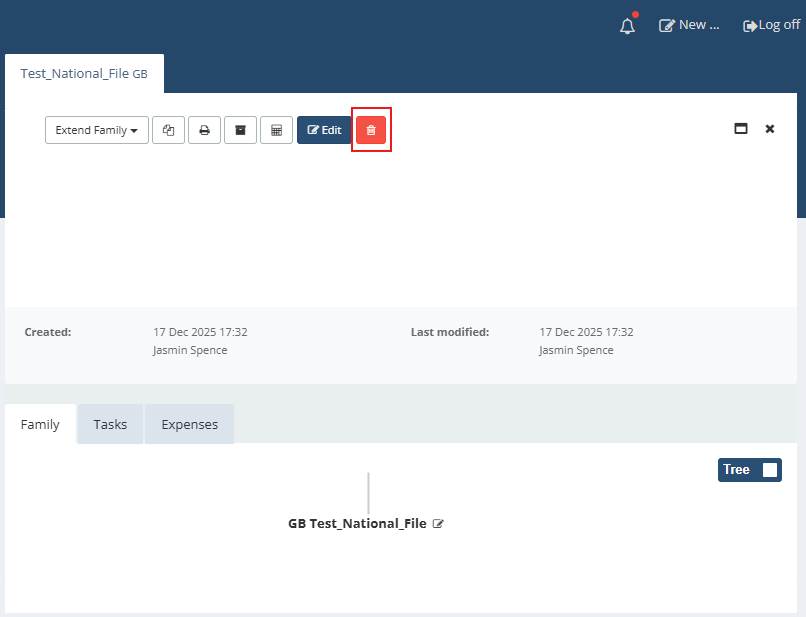
Delete a file (move to trash) 1. In the file overview, select the file you want to delete. 2. Next to the blue “Edit” button, click the red trash can icon. 3. The file is immediately moved to “Deleted files”. Note: There is no confirmation dialog or intermediate step before the file is moved to the trash. |
 |
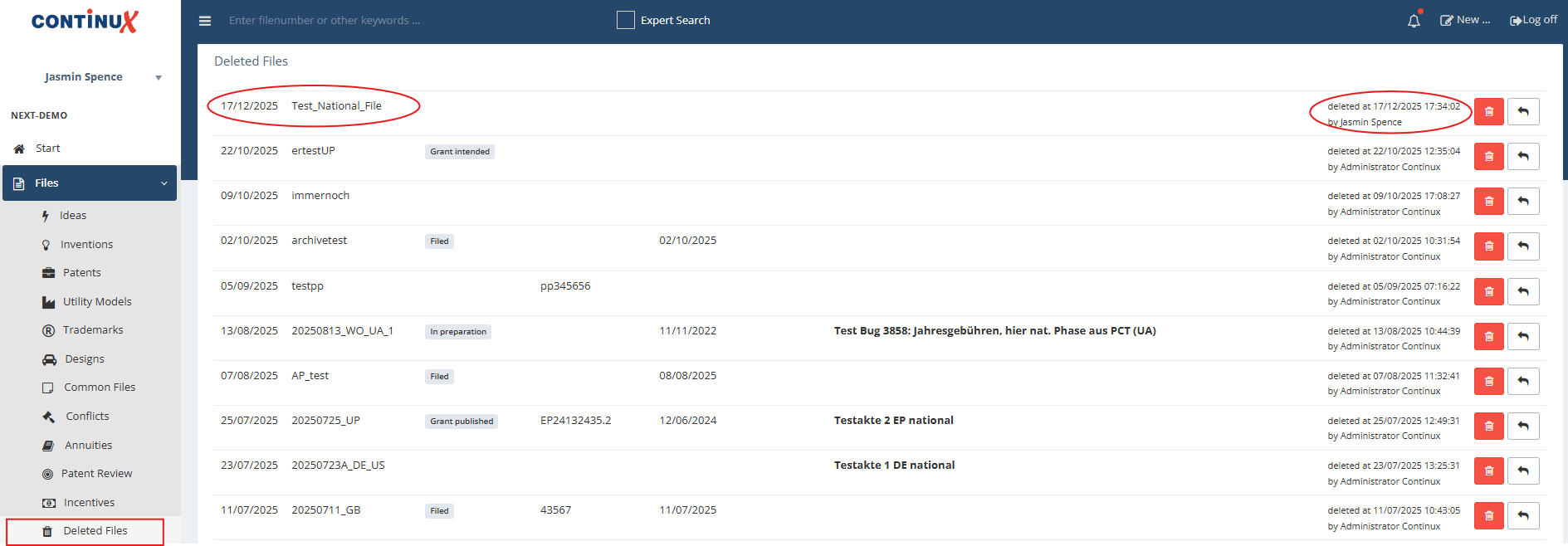
Open “Deleted files” 1. Menu path: Files → Deleted files. 2. The most recently deleted file appears at the top of the list. 3. The list also shows the deletion date, time and the user who deleted the file. |
 |
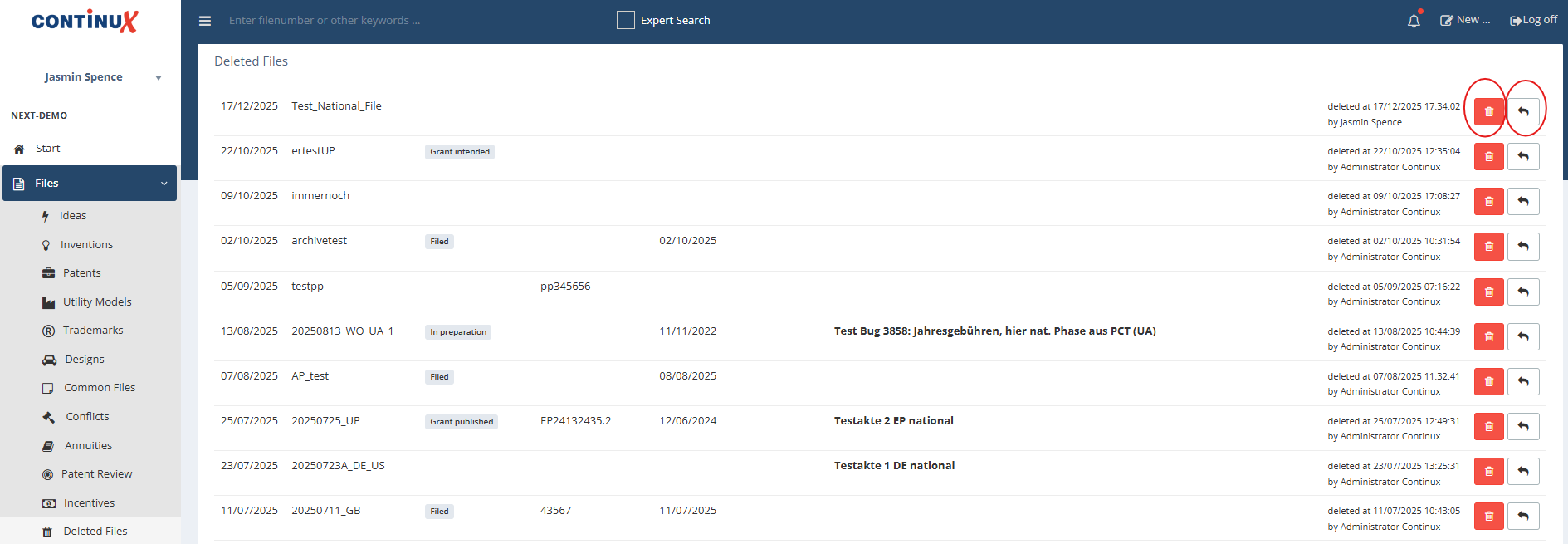
Options in the “Deleted files” folder
|
 |
Note on files with the same reference If you want to create a new file with the same file reference, the previously deleted file must be permanently deleted first. Otherwise, the system returns an error and the file cannot be created: |
 |
Best practices
|
War dieser Artikel hilfreich?
Das ist großartig!
Vielen Dank für das Feedback
Leider konnten wir nicht helfen
Vielen Dank für das Feedback
Feedback gesendet
Wir wissen Ihre Bemühungen zu schätzen und werden versuchen, den Artikel zu korrigieren